
Manage Config Profiles
Create and manage configuration profiles that control naming conventions, package structure, and PSADT settings.
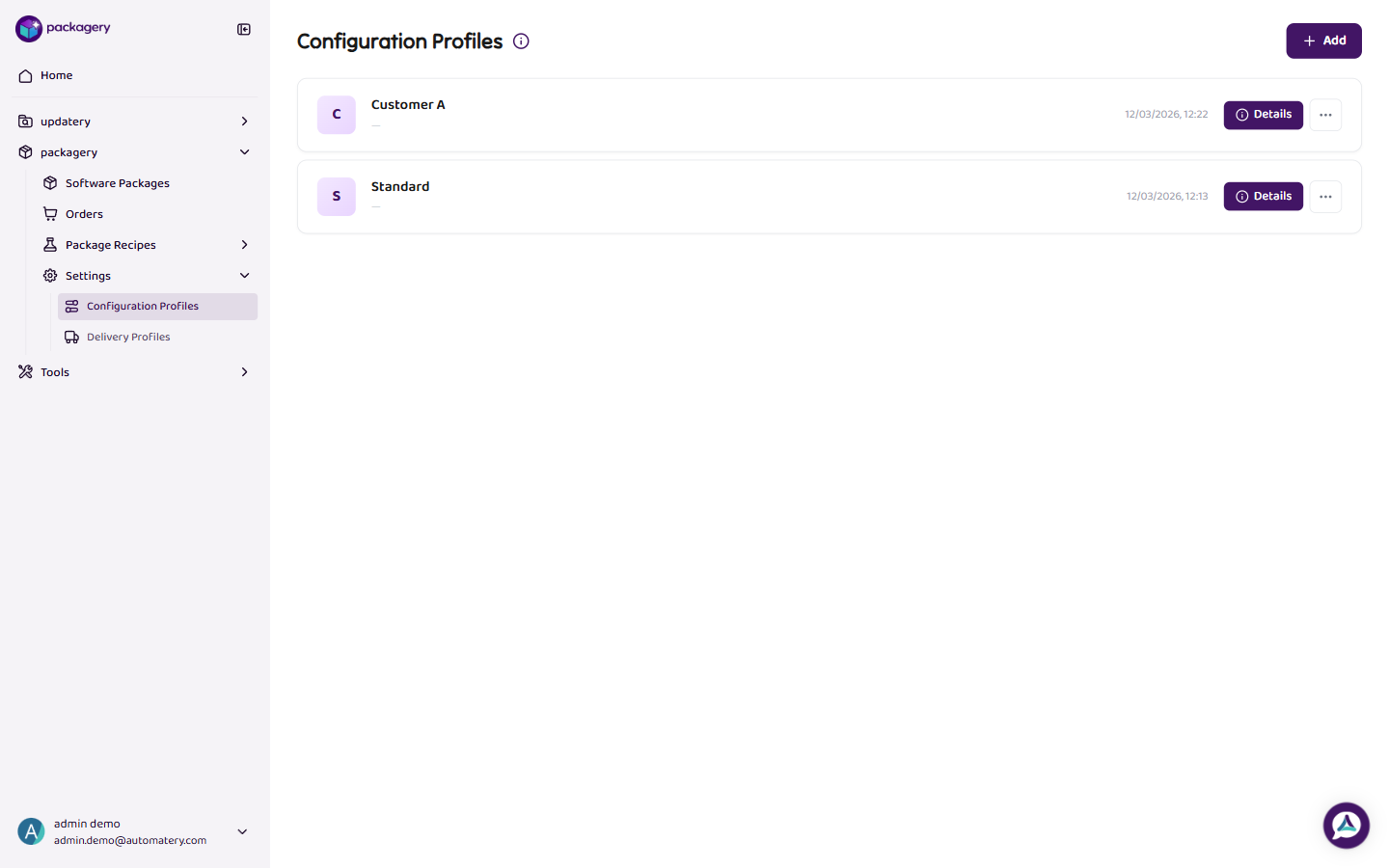
-
Navigate to Settings > Configuration Profiles
Navigate to Settings > Configuration Profiles. The overview shows all profiles with name, description, and last modification date.
-
Click
Click Add to create a new profile, or click an existing profile to edit it. Each profile has three configuration areas.
-
Click
Naming Conventions: Choose the name separator (tilde ~ or underscore _), toggle technical name inclusion, and set platform abbreviations (Client: C, Server: S, Client & Server: M, VDI: V).
-
Click
Package Structure: Define the package subfolder and the package documentation folder paths.
-
Click
PSADT Configuration has three sub-tabs: Appearance (banner image, PSADT extensions), Log Paths (4 configurable paths), and Settings (registry detection key, deploy mode, PSADT template).
-
Use the Copy button to duplicate an existing profile
Use the Copy button to duplicate an existing profile. This is useful when you need a similar profile with small adjustments. Profiles can only be deleted if they are not attached to any recipe and at least one other profile exists.